
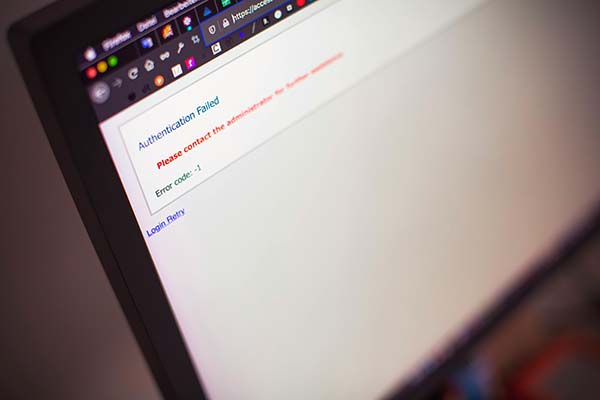
Protect Your Site, Your Visitors, and Your Peace of Mind
Whether you’re running a blog, a spiritual healing business, or an eCommerce store, your WordPress website is a vital part of your online presence. But as powerful as WordPress is, it’s also a popular target for hackers and malicious bots.
The good news? Securing your WordPress site doesn’t require you to be a tech wizard. With the right practices and a bit of vigilance, you can protect your site and keep it running smoothly.
Here’s your essential WordPress website security checklist — follow these steps to lock things down and sleep easier at night.
✅ 1. Keep WordPress Core, Themes, and Plugins Updated
Outdated code is a common entry point for attackers.
- Check for updates weekly.
- Delete plugins/themes you’re not actively using.
- Enable automatic updates where possible.
Pro Tip: Only use trusted themes and plugins from the WordPress Repository or reputable developers.
✅ 2. Use Strong, Unique Passwords
Avoid common passwords like `admin123` or reusing passwords across accounts.
- Use a password manager to generate/store secure passwords.
- Change your passwords every 3–6 months.
✅ 3. Install a Trusted Security Plugin
Security plugins act as your site’s digital bodyguard.
Recommended plugins:
Look for features like:
- Malware scanning
- Login protection
- Firewall
- Real-time alerts
✅ 4. Enable Two-Factor Authentication (2FA)
Add an extra layer of protection during login.
Use apps like Google Authenticator or Authy.
Many security plugins include built-in 2FA.
✅ 5. Limit Login Attempts
Protect your login page from brute-force attacks.
Limit failed login attempts with a plugin.
Lock out users after too many failures.
Hide or change your login URL from `/wp-login.php` to something custom.
✅ 6. Backup Regularly (and Test It!)
A backup can save your site from disaster.
Use tools like:
• UpdraftPlus
• Jetpack
• VaultPress
• Your web host’s built-in backup
Best practices:
• Store backups off-site (Dropbox, Google Drive, etc.).
• Automate backups (daily or weekly).
• Test your backups regularly.
✅ 7. Use SSL Encryption (HTTPS)
SSL protects visitor data and improves SEO.
- Ensure your site uses HTTPS.
- Most hosts provide free SSL via **Let’s Encrypt**.
- Look for the lock icon in the browser.
✅ 8. Set Correct File Permissions
Improper permissions can expose your site to risk.
Folders: `755`
Files: `644`
If unsure, ask your hosting provider to review them for you.
✅ 9. Disable XML-RPC (If Not Needed)
Most users don’t need XML-RPC. Disable it to prevent abuse.
Use a plugin or
Add a rule in `.htaccess` to block access
✅ 10. Monitor Activity Logs
- Keep track of what’s happening on your site.
- Track logins, file changes, and user actions.
- Set alerts for suspicious behavior.
- Many security plugins include activity logs.
Bonus Tips
- Use a reliable, secure hosting provider.
- Avoid using “admin” as your username.
- Restrict access to sensitive files like `wp-config.php`.
- Auto-logout idle users for added security.
Peace of Mind Begins with Protection
Security might not be the most exciting part of running a WordPress website—but it’s one of the most important. Think of it as sacred digital hygiene: clearing the space so your message and mission can flow freely, without interruption.
Take time today to walk through this checklist—or set a reminder to tackle it in manageable steps. Your future self (and your website visitors) will thank you.
Need Help?
If you’re unsure how to implement any of these steps, reach out to your web developer, hosting support, or a WordPress specialist. You don’t have to do it all alone.